Connect the BNBCalc MCP server
Connect BNBCalc to Claude, ChatGPT, Claude Code, Cursor or VS Code, one step at a time. Claude and ChatGPT need no code and nothing to install. Then ask a free question to check it works, and find fixes for the errors people hit most.
Before you start
- 1
You need a BNBCalc account and an AI app such as Claude or ChatGPT. You don't need a key or any code: the first time your app connects, a BNBCalc page opens, so sign in and click Allow.
- 2
Free tools work right away. For paid tools, open Settings → API & MCP and start the API subscription: checkout asks for a card, but there's no monthly fee and nothing is charged until you make paid calls. The same subscription covers the REST API.
- 3
Pick your app below and follow its steps in order. Not a developer? Use Claude or ChatGPT: there is nothing to install. Every app uses the same server address: https://atlas.bnbcalc.com/mcp.
The sign-in page names the app that's connecting and asks to share your basic profile and email. Your password stays with BNBCalc; the app only gets an access token for the MCP server.
Claude
- 1
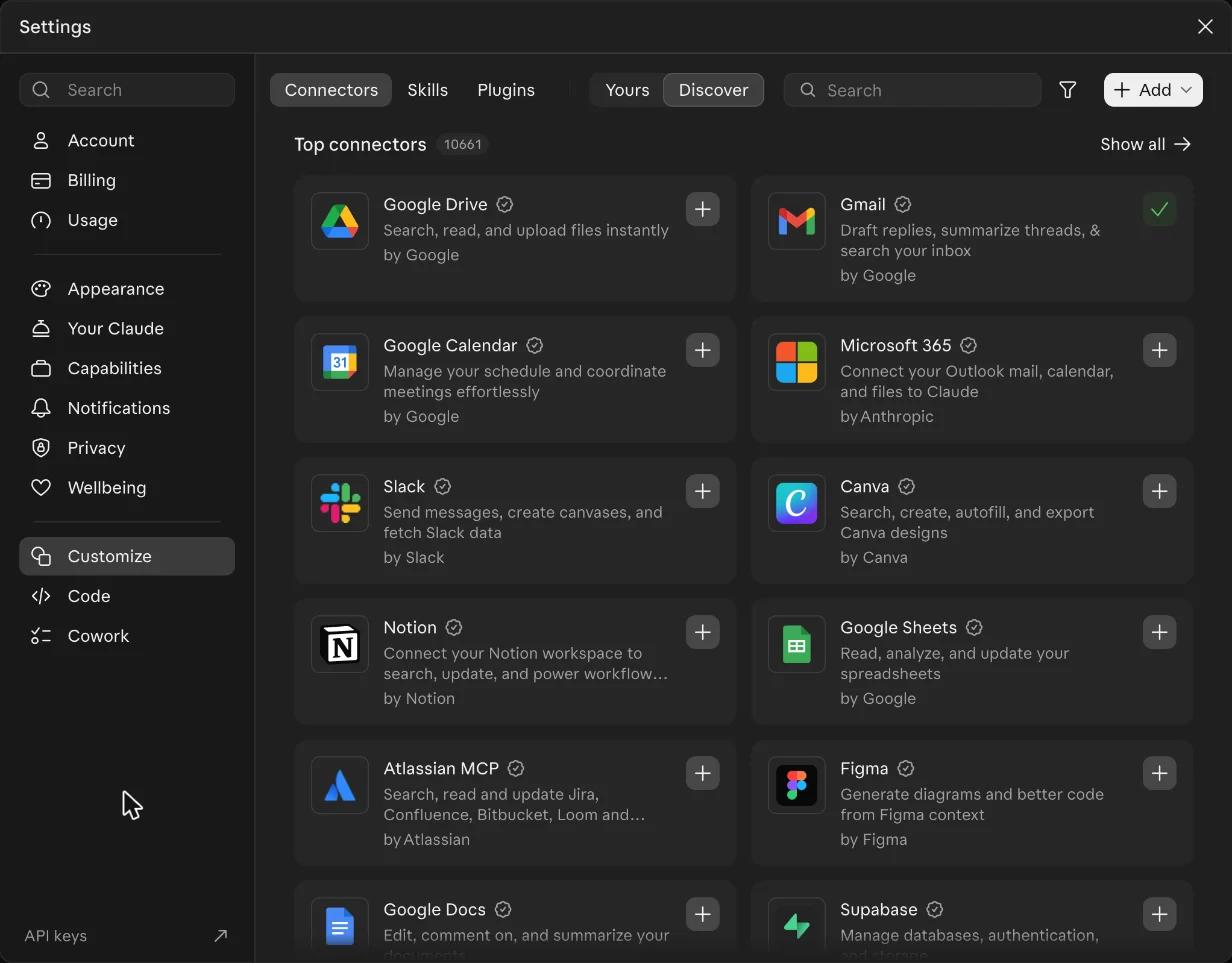
Open Claude on the web or in the desktop app, go to Settings and open Customize.
- 2
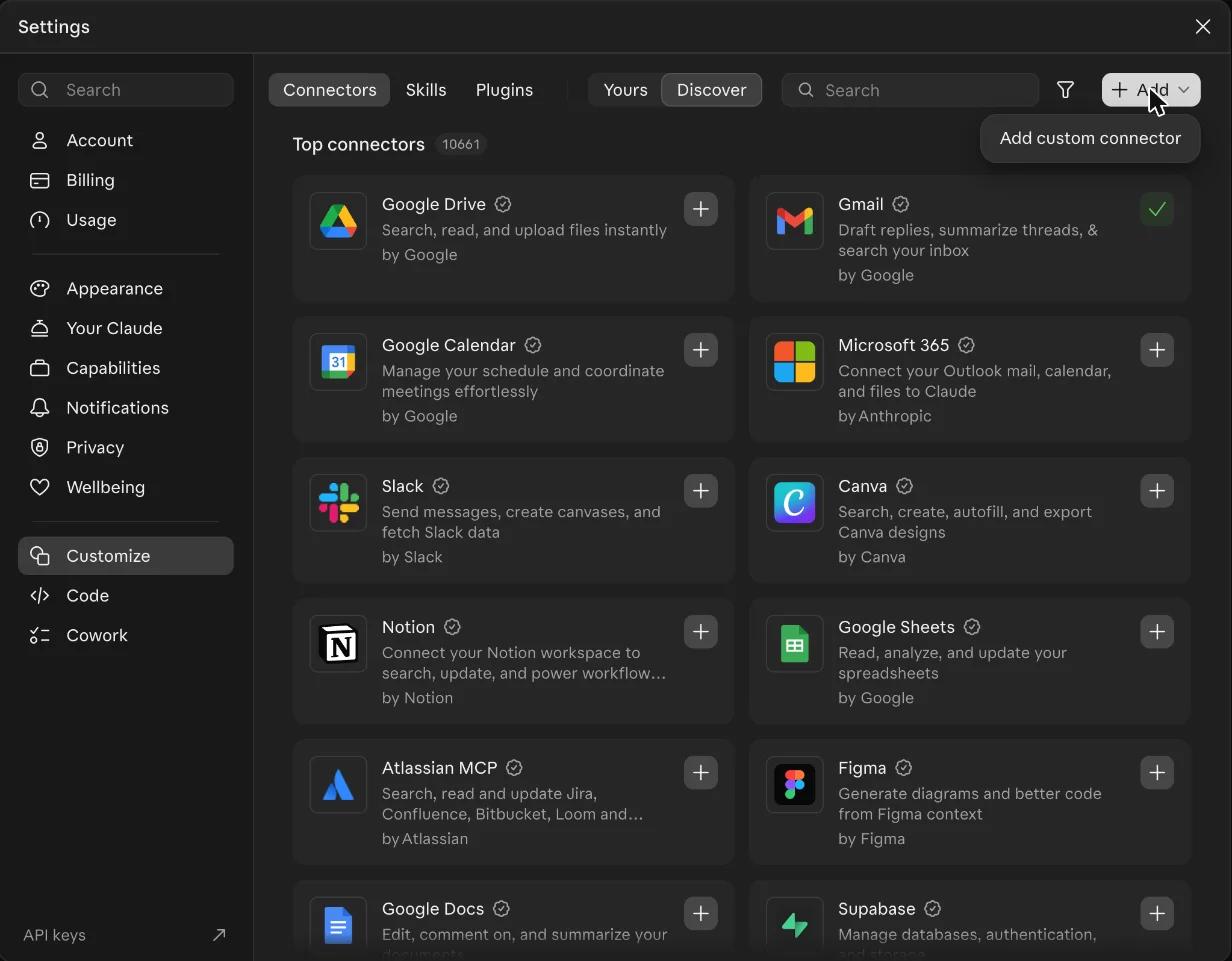
On the Connectors tab, click Add, then Add custom connector.
- 3
Type BNBCalc as the name, paste this address into the MCP server URL box and click Continue.
Custom connector URL
https://atlas.bnbcalc.com/mcp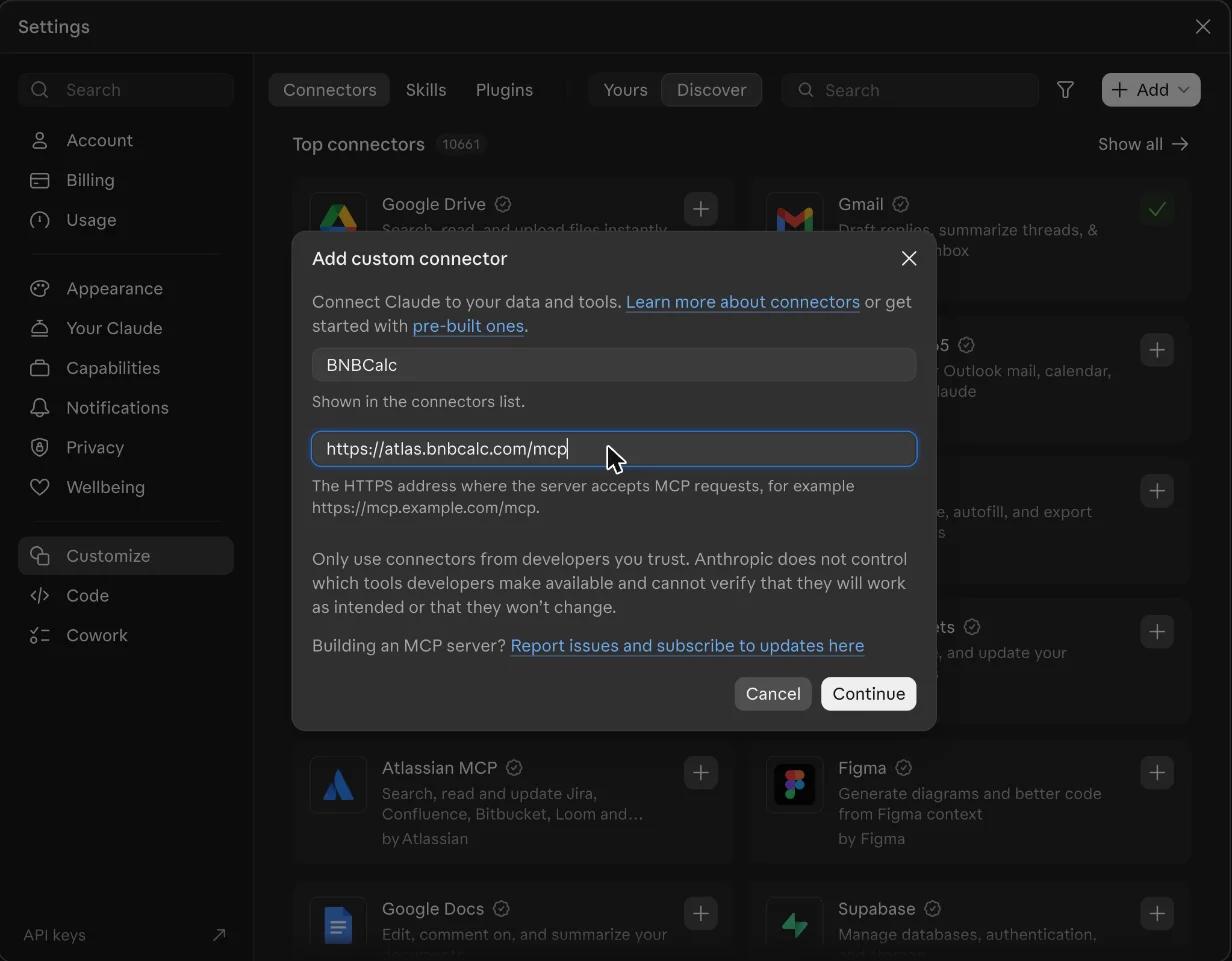
- 4
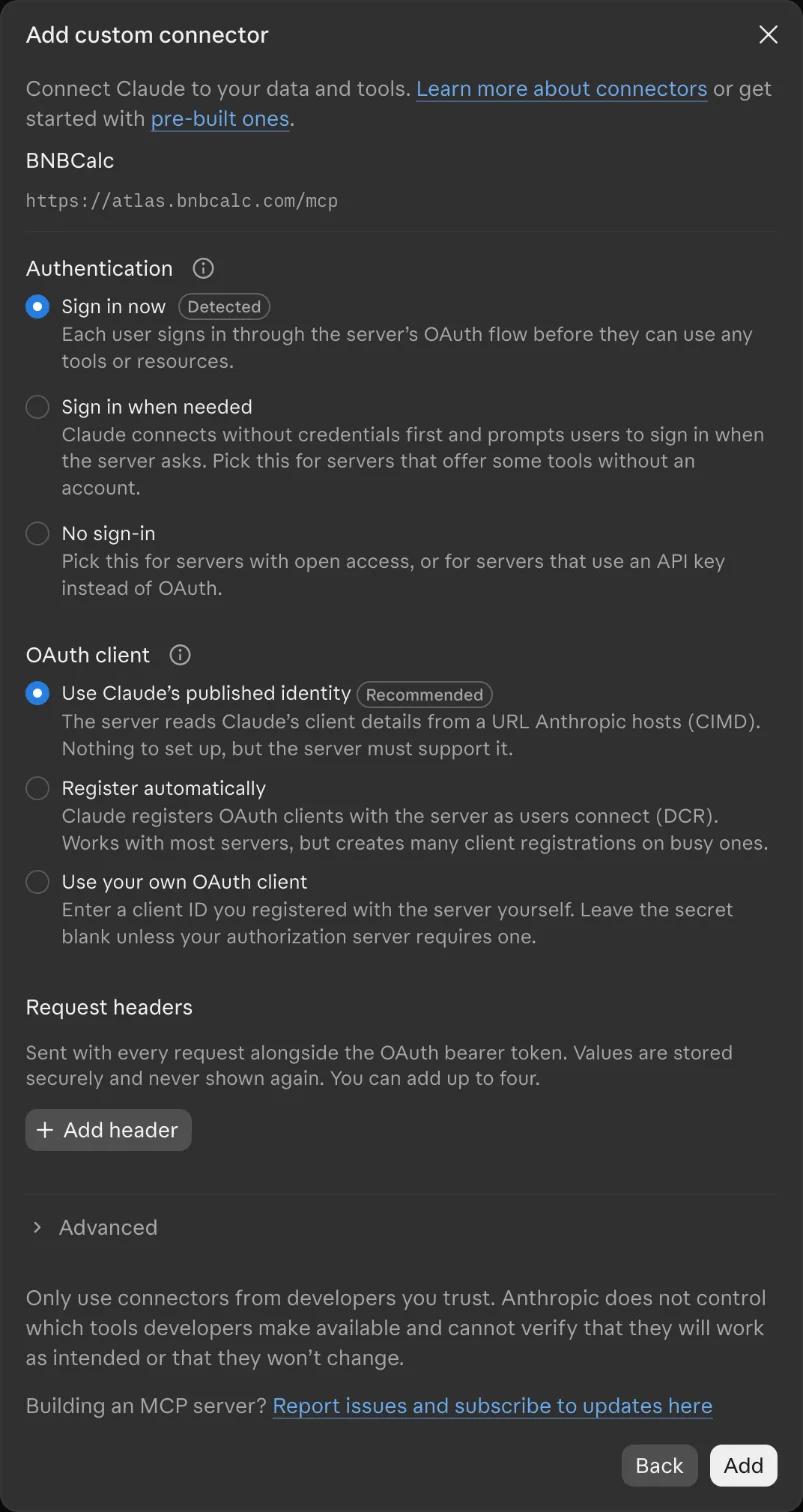
Claude checks the server and shows its sign-in options. Leave them as they are and click Add.
- 5
Claude shows that you're not connected to BNBCalc yet. Click Connect.
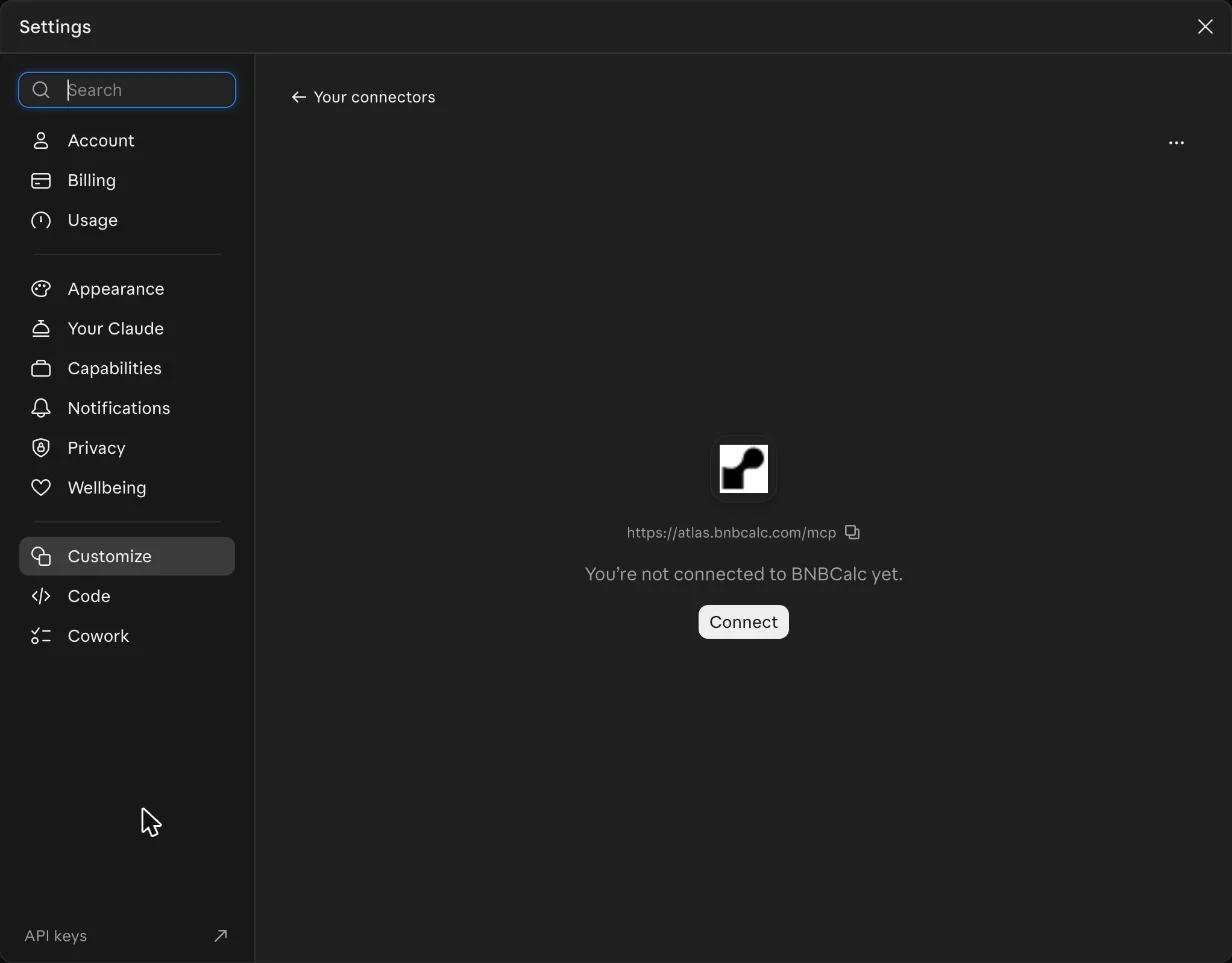
- 6
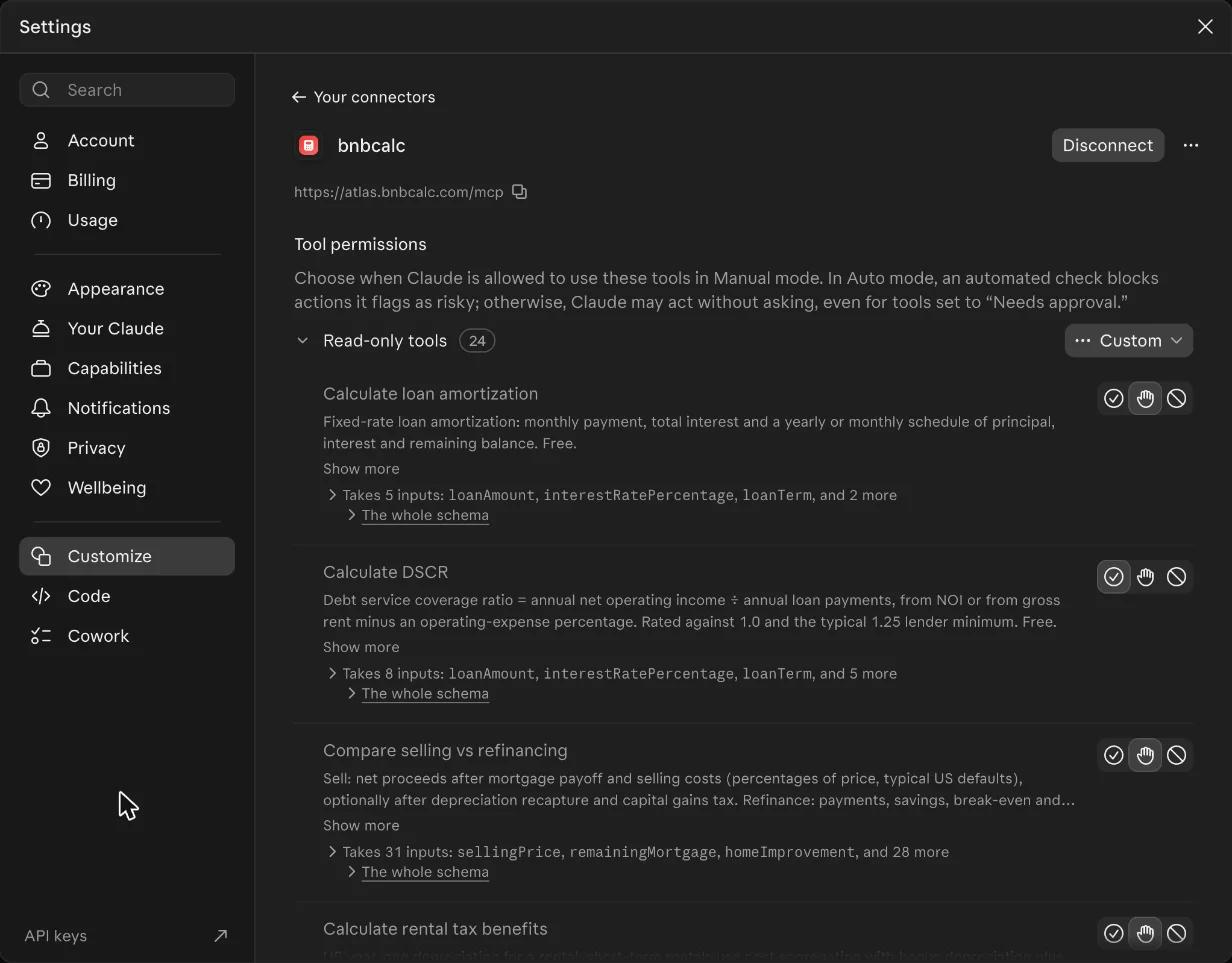
A BNBCalc page opens: sign in and click Allow. Back in Claude, the connector now lists BNBCalc's tools.
- 7
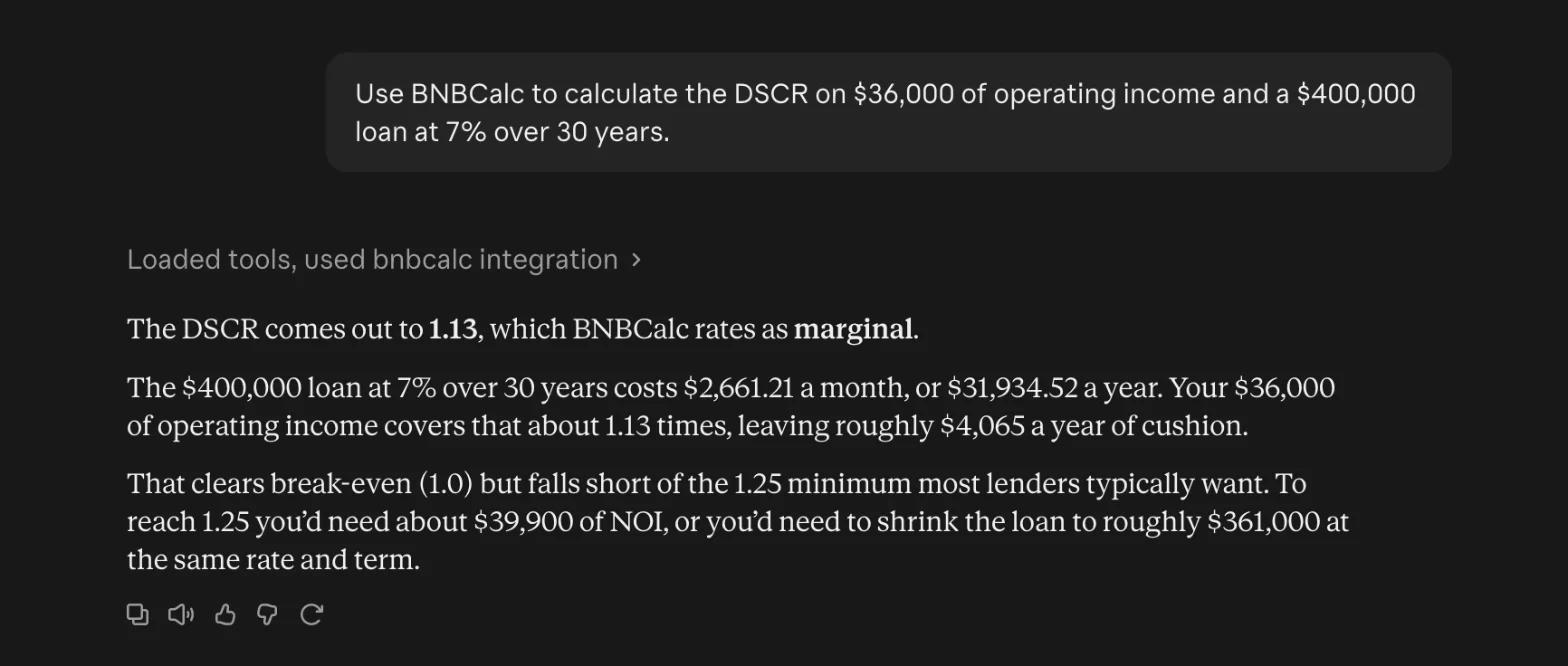
Start a new chat and ask the free question under Check it works. Claude asks before it uses a BNBCalc tool: click Allow once. BNBCalc now works in Claude on the web, in Claude Desktop and in the mobile app.
On a Team or Enterprise plan, an owner may need to add the connector first.
ChatGPT
- 1
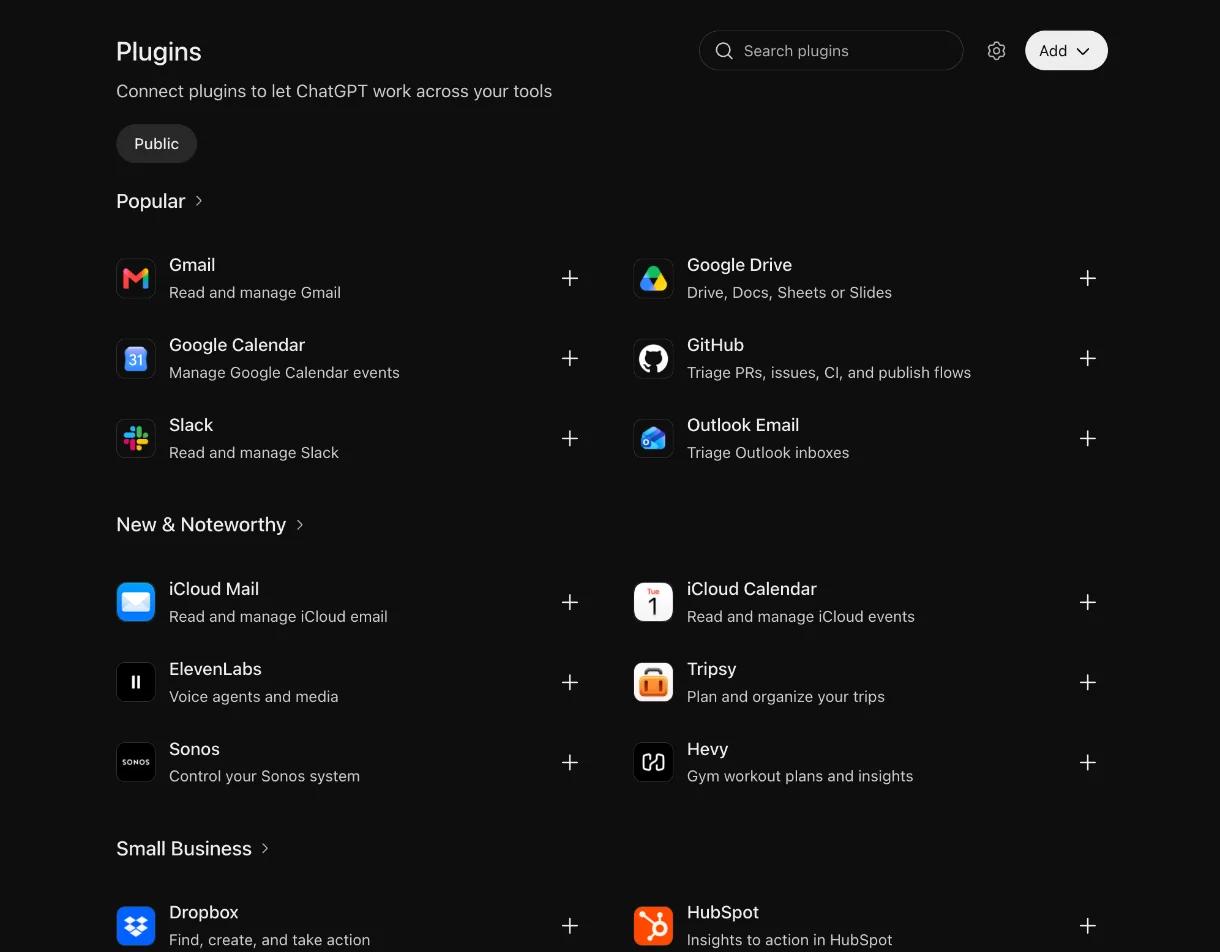
Open ChatGPT and go to Settings, then Plugins, and click Browse directory. The Plugins page opens.
- 2
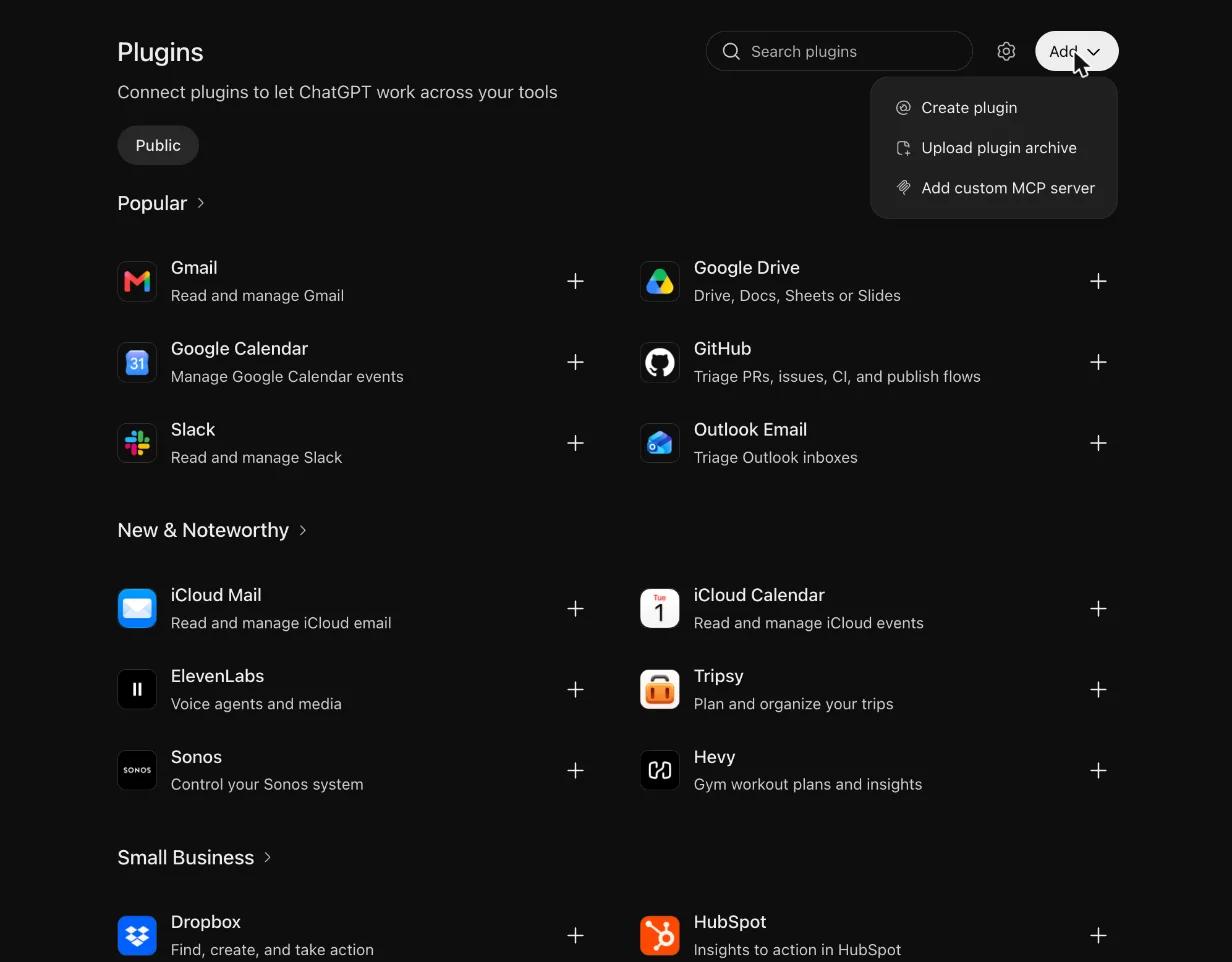
Click Add, then Add custom MCP server.
- 3
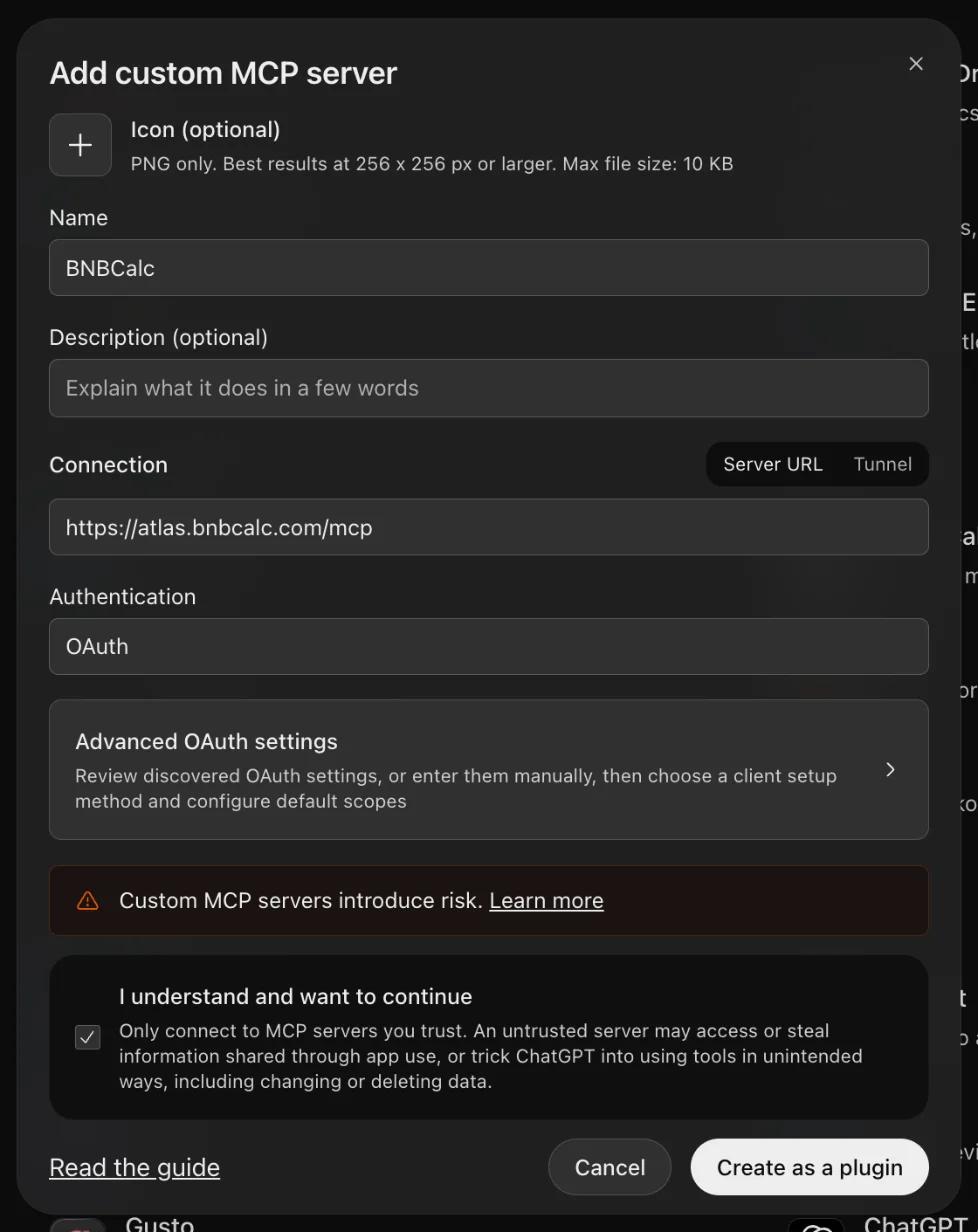
Type BNBCalc as the name and paste this address under Connection, in the Server URL box. Leave Authentication on OAuth.
Custom connector URL
https://atlas.bnbcalc.com/mcp - 4
Tick I understand and want to continue, then click Create as a plugin.
- 5
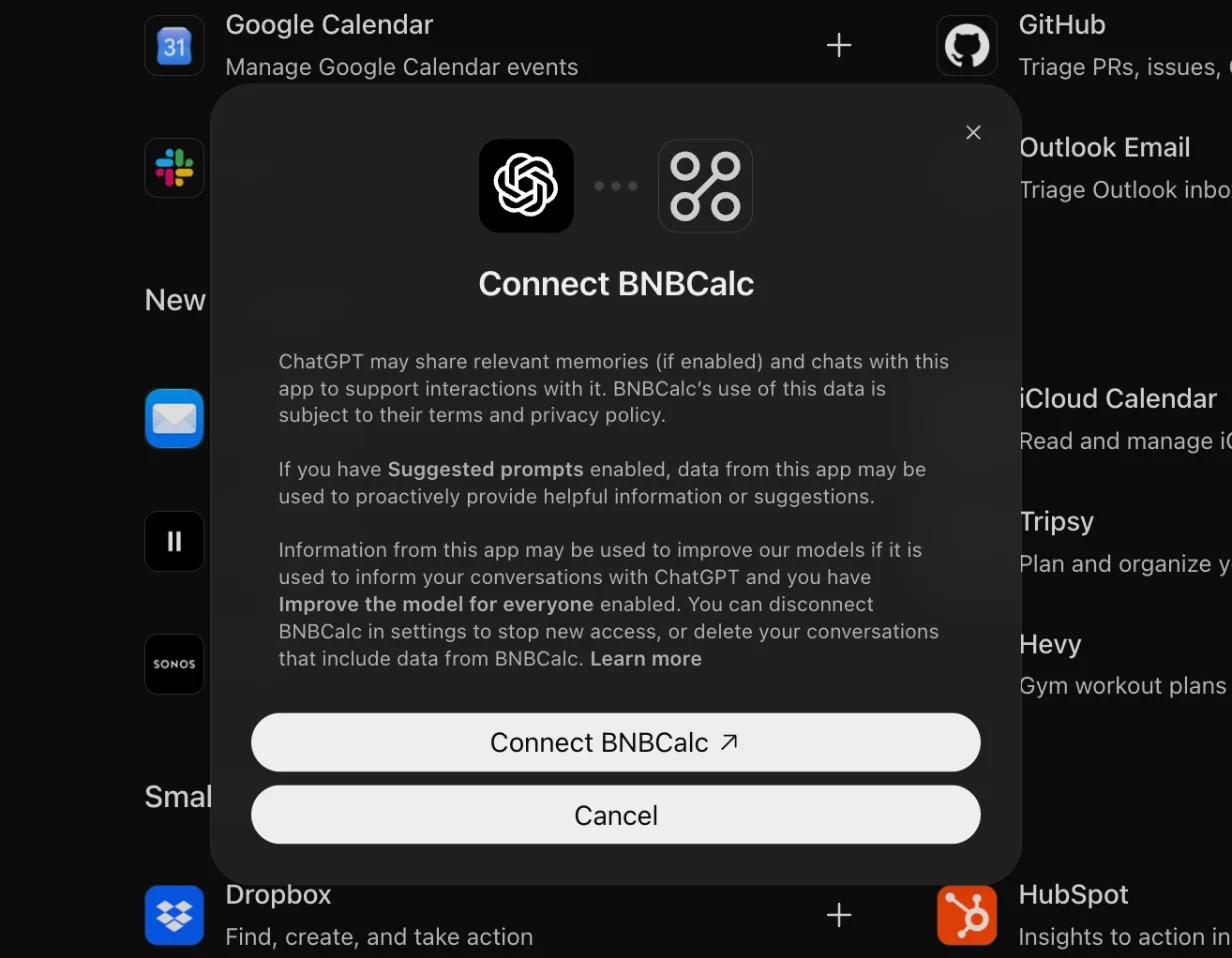
ChatGPT shows a Connect BNBCalc window. Click Connect BNBCalc.
- 6
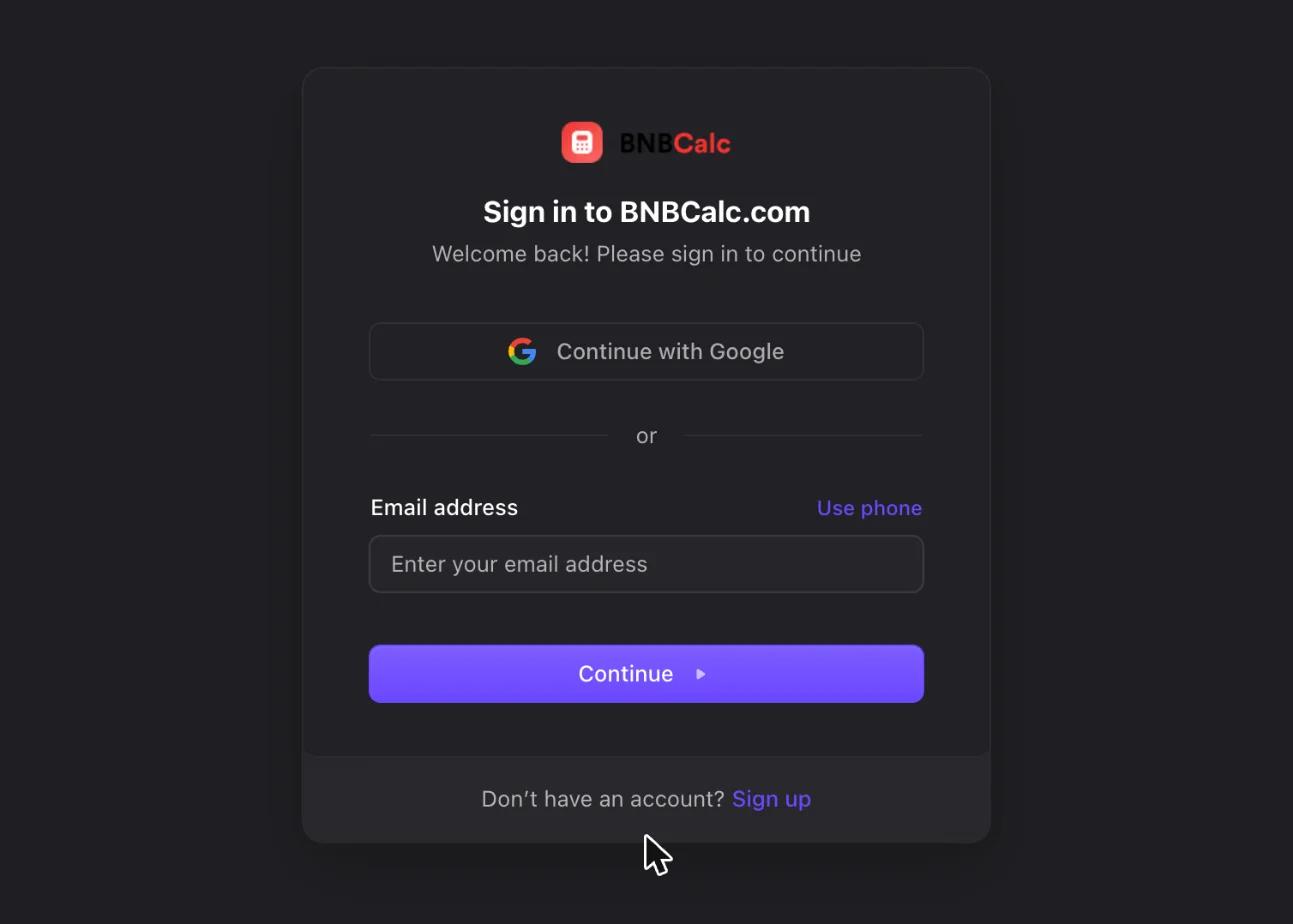
The BNBCalc sign-in page opens. Sign in, then click Allow.
- 7
Start a new chat, click the plus button next to the message box and choose BNBCalc. Then ask the free question under Check it works.
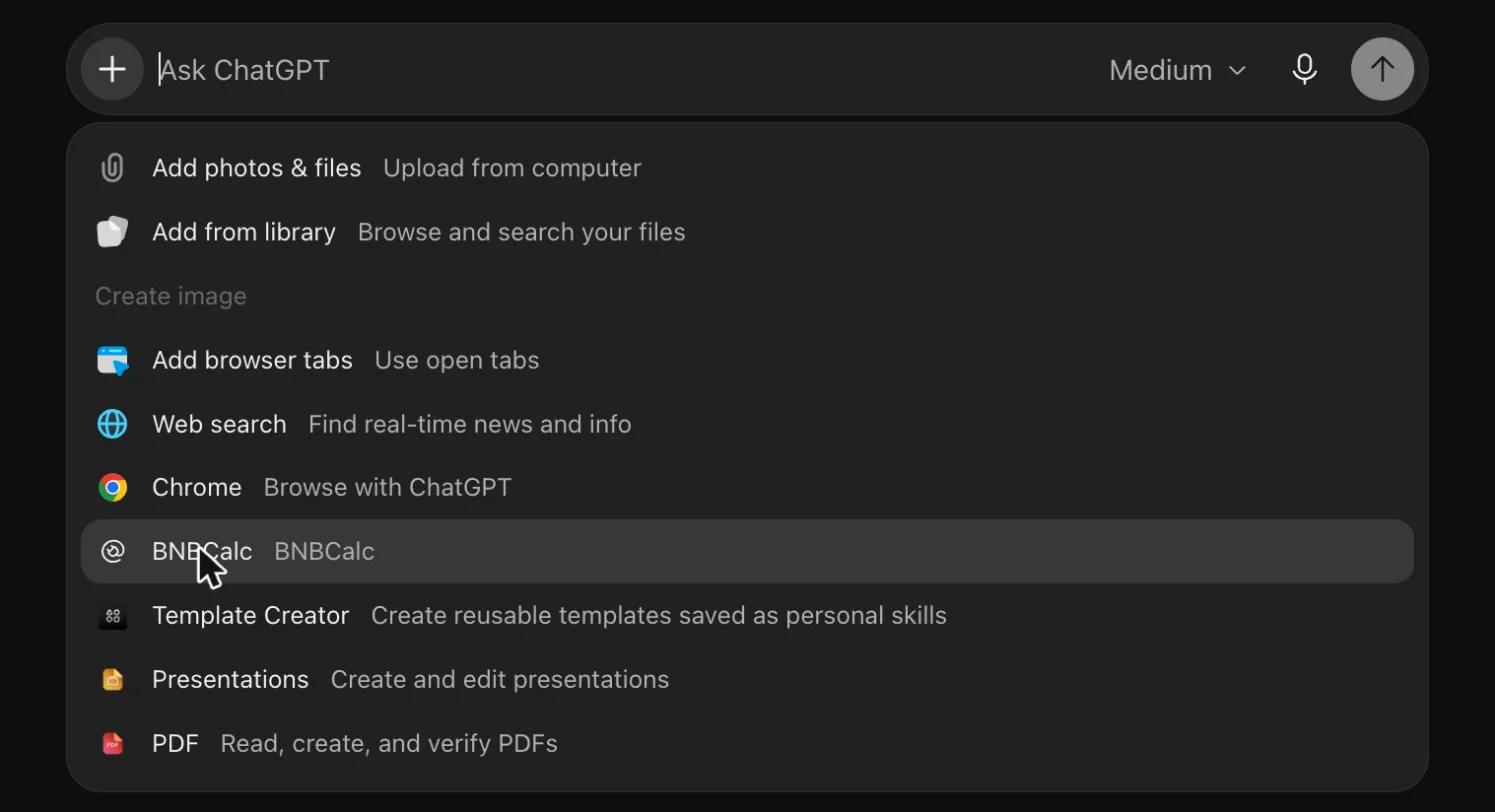
ChatGPT renames its menus from time to time. If yours look different, look for a way to add a custom MCP server, plugin or connector. Some accounts need Developer mode turned on in Settings first.
Claude Code
- 1
Open a terminal and run this command. --scope user adds BNBCalc to every project; without it, Claude Code adds the server to the current project only.
Terminal
claude mcp add --transport http --scope user bnbcalc https://atlas.bnbcalc.com/mcp - 2
Start Claude Code and type /mcp.
- 3
Pick bnbcalc and choose Authenticate. A BNBCalc page opens: sign in and click Allow.
- 4
Run claude mcp list to see bnbcalc connected.
Cursor
- 1
Click Add to Cursor under the code and confirm in Cursor. Or paste this into ~/.cursor/mcp.json to use BNBCalc in every project, or into .cursor/mcp.json inside one project.
~/.cursor/mcp.json
{ "mcpServers": { "bnbcalc": { "url": "https://atlas.bnbcalc.com/mcp" } } } - 2
Open Cursor's MCP settings and find bnbcalc.
- 3
Click its button to sign in. A BNBCalc page opens: sign in and click Allow.
- 4
Check that bnbcalc shows its tools. If it won't connect, the MCP Logs output says why.
VS Code
- 1
Click Install in VS Code under the code. Or run the MCP: Open User Configuration command and paste this in; the same entry works in a project's .vscode/mcp.json.
.vscode/mcp.json
{ "servers": { "bnbcalc": { "type": "http", "url": "https://atlas.bnbcalc.com/mcp" } } } - 2
Run MCP: List Servers and start bnbcalc.
- 3
When VS Code asks to sign in to BNBCalc, allow it, then sign in and click Allow.
- 4
Open Copilot's agent mode and check that BNBCalc's tools appear.
Connect with your API key
Use this when an app or script can't open a sign-in page and can only send a fixed header. Otherwise, signing in above is simpler.
- 1
Open Settings → API & MCP in BNBCalc and start the API subscription if you haven't yet. There's no monthly fee.
- 2
Create a key and copy it right away: it is shown in full only once.
- 3
Paste the key where these configs say YOUR_API_KEY. It is sent in the x-bnbcalc-api-key header.
Terminal
claude mcp add --transport http --scope user bnbcalc \
  https://atlas.bnbcalc.com/mcp \
  --header "x-bnbcalc-api-key: YOUR_API_KEY"
claude_desktop_config.json
{
  "mcpServers": {
    "bnbcalc": {
      "command": "npx",
      "args": [
        "-y",
        "mcp-remote",
        "https://atlas.bnbcalc.com/mcp",
        "--header",
        "x-bnbcalc-api-key:${BNBCALC_API_KEY}"
      ],
      "env": {
        "BNBCALC_API_KEY": "YOUR_API_KEY"
      }
    }
  }
}
~/.cursor/mcp.json
{
  "mcpServers": {
    "bnbcalc": {
      "url": "https://atlas.bnbcalc.com/mcp",
      "headers": {
        "x-bnbcalc-api-key": "YOUR_API_KEY"
      }
    }
  }
}
.vscode/mcp.json
{ "servers": { "bnbcalc": { "type": "http", "url": "https://atlas.bnbcalc.com/mcp", "headers": { "x-bnbcalc-api-key": "YOUR_API_KEY" } } } } - 4
Restart your app, then ask the free question under Check it works.
Claude Desktop can't send a custom header on its own, so its config runs a small bridge, mcp-remote, through npx; install Node.js 18 or newer first. Open the config from Settings → Developer → Edit Config, and keep no space after the colon in x-bnbcalc-api-key:${BNBCALC_API_KEY}, since a space breaks on Windows. Then quit Claude Desktop completely and open it again.
This is the same key the REST API uses. One key works in several apps; if you regenerate it, update each app that uses it, and keep files with a key out of version control.
Other MCP apps
Any app that connects to a remote server over streamable HTTP works, by signing in with BNBCalc or by sending your BNBCalc API key in a custom header. The server takes POST requests and keeps no sessions, so apps that only use the older SSE connection won't work. Cline, for example, needs "type": "streamableHttp" in its config.
Check it works
Ask a free question first, such as “What's my BNBCalc MCP usage this month?” or “Calculate the DSCR on $36,000 of operating income and a $400,000 loan at 7% over 30 years.” If BNBCalc answers, you're connected, and nothing has been charged.
See your usage and cost
Open Settings → API & MCP. The usage card has an API and MCP switch: choose MCP to see each tool's successful calls, units and cost for the billing period. Only successful calls are billed.
Common errors
The server's error message names the cause. These are the ones people hit most:
- Missing MCP credentials. Connect with OAuth or provide your API key in x-bnbcalc-api-key
- Finish connecting in your app; in Claude Code, type /mcp and choose Authenticate. With a key, check the header is spelled x-bnbcalc-api-key.
- Invalid or expired OAuth access token
- The app's sign-in expired or was revoked. Connect again from the app, or remove BNBCalc and add it back.
- No BNBCalc account is linked to this sign-in yet. Sign in once at https://www.bnbcalc.com, then reconnect.
- Your sign-in has no verified email, so BNBCalc couldn't set up your account from it. Sign in once on the BNBCalc website with the same email or Google account, then connect again.
- You are trying to call a paid BNBCalc tool (…), which needs an API & MCP subscription on BNBCalc
- Free tools work without a subscription. Subscribe to API access in Settings → API & MCP (there's no monthly fee), then ask again; you don't need to reconnect.
- Invalid API key
- Check that you copied the whole key from Settings → API & MCP. If the key was regenerated or deleted, put the new one in your config.
- API access requires an active BNBCalc API subscription
- MCP access requires an active BNBCalc API subscription
- Keys need an API subscription, which covers MCP: subscribe in Settings → API & MCP.
- BNBCalc access is suspended after a failed payment. Update your payment method under Settings → API & MCP on the BNBCalc website.
- API key is suspended or inactive
- The subscription ended or a payment failed twice. Subscribe again or pay the open invoice, and the same key works again.
- Daily data limit reached for this API key. It resets at 00:00 UTC.
- Wait until 00:00 UTC. The limit is shared with the REST API, and failed lookups count too.
- AI request rate limit exceeded
- Too many AI requests in flight (max 2 concurrent)
- Wait a minute, and run AI comps or AI expense estimates two at a time.
- External API request timed out; it may still complete. Do not automatically retry.
- Don't retry yet: the call may still finish, and bill. Ask the assistant to list your saved analyses first.